UI testing: what it covers and how to automate it
UI testing checks that an interface works, looks right and is usable by everyone. The three questions, the three levels, how to automate each, and a checklist.
 Igor LuchenkovBuilding UI Verify
On this page
- What are the three questions UI testing asks?
- Why can a functional test pass on a broken UI?
- What does accessibility testing catch that screenshots miss?
- What are the levels of UI testing?
- How do you automate UI testing?
- A UI testing checklist you can automate
- Who writes UI tests when agents write the UI?
UI testing is checking that a user interface does what it should, looks the way it should, and can be used by everyone it is for. Those are three separate questions, and each needs its own kind of test: a functional test that clicks and asserts, a screenshot test that compares pixels against an approved baseline, and an accessibility scan. Each question can be asked at three levels, from a single component up to a full user journey. Most UI testing guides list the questions; this one shows what each one misses, using real runs.
We built a small sign-up form (an email field with a validation error, a password field with a show-password eye button, and a hint under it) and wrote one test of each kind at each level, with Playwright 1.64.1, Vitest 5.0.5 in browser mode, and axe-core 4.14.0, on 2026-11-02. Then we made one-line changes, staged for this post, and recorded which tests noticed.
What are the three questions UI testing asks?
- Does it work? A functional or interaction test drives the UI like a user, clicking and typing, and asserts on what happens: the error appears, the page navigates, the value is saved.
- Does it look right? A visual test, often called a screenshot test, captures the UI in a known state and compares it against an approved baseline, so a change in what users see shows up as a diff.
- Can everyone use it? An accessibility test scans the rendered UI against WCAG rules: names on controls, contrast, labels, focus order.
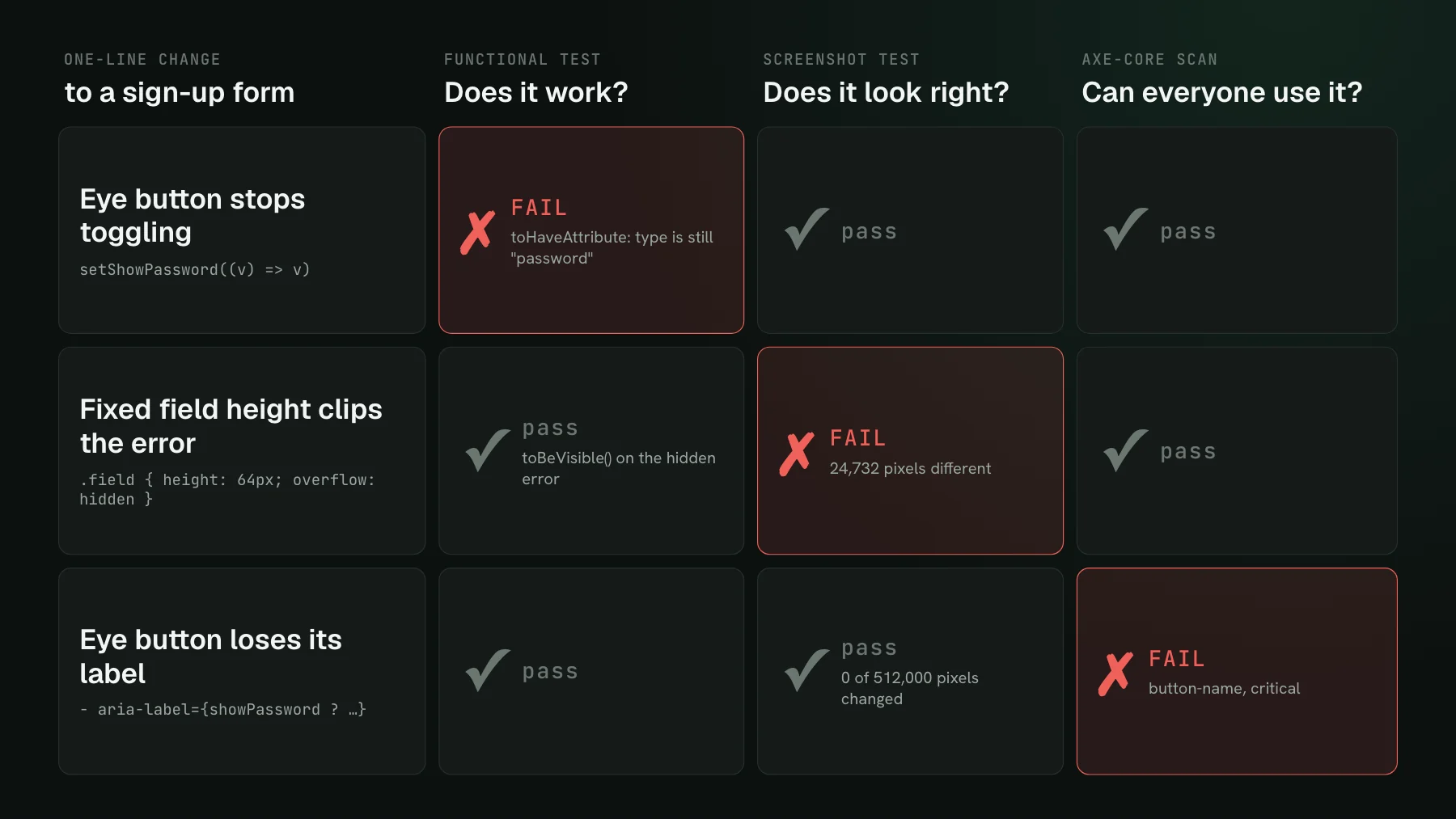
The cover shows why you need all three. We made three one-line changes. The eye button stopped toggling: only the functional test failed. A fixed field height clipped the error message: only the screenshot test failed. The eye button lost its aria-label: only the accessibility scan failed. Each change passed the other two checks completely.
Why can a functional test pass on a broken UI?
Because "visible" in a test framework means something narrower than visible to a person. The change was a CSS line meant to stop the form from jumping, .field { height: 64px; overflow: hidden }, and it pushed the validation error below the field's clipped edge. The functional test asserted toBeVisible() on the error and passed. Playwright's docs define an element as visible when it "has non-empty bounding box and does not have visibility:hidden computed style" (checked 2026-11-02), and Vitest's browser assertions use the same sentence. Clipping by an ancestor's overflow is not part of the definition.
We asked Playwright and the browser directly. Both said the clipped error was visible: Playwright's isVisible, the browser's own checkVisibility, a 334 by 15 pixel bounding box. Only a hit test at the centre of that box gave the user's answer, by returning the form behind it. The screenshot test compared pixels against the baseline and failed on 24,732 of them.
What does accessibility testing catch that screenshots miss?
Everything that changes meaning without changing pixels. Deleting the eye button's aria-label left the page identical: an exact pixel comparison found 0 of 512,000 pixels changed. The functional tests still clicked the button and passed. axe reported a critical button-name violation, because a screen reader now announces an unnamed button. Deque says axe-core finds on average 57% of WCAG issues automatically, so a clean scan is a floor, not a certificate, but it catches this class of break reliably and with no false positives by design.
Sometimes two checks fire on one change, for different reasons. We lightened the password hint from #6b7280 to #b4b9c1. The screenshot test reported 214 changed pixels, which tells a reviewer something changed but not whether it is wrong; a lighter hint could easily be an intended restyle. axe said why it was wrong: a contrast ratio of 1.97:1 where WCAG AA asks for 4.5:1.
What are the levels of UI testing?
The same three questions can be asked of a single component, a whole page, or an end-to-end journey. At the component level, a test renders one component in a real browser and drives it: Vitest browser mode with Testing Library-style queries, or a Storybook story with a play function. At the page level, Playwright opens the page and tests it in place. End to end, Playwright walks a user journey across pages, like signing up and landing on the welcome screen.
Level decides what a test can see. The clipped error failed the screenshot test at component level and at page level. At end-to-end level all three tests passed, because the journey signs up with a valid email and never renders the error state. The same held for the broken eye button. An end-to-end suite tests the happy path by design, and most UI breaks live in the other states.
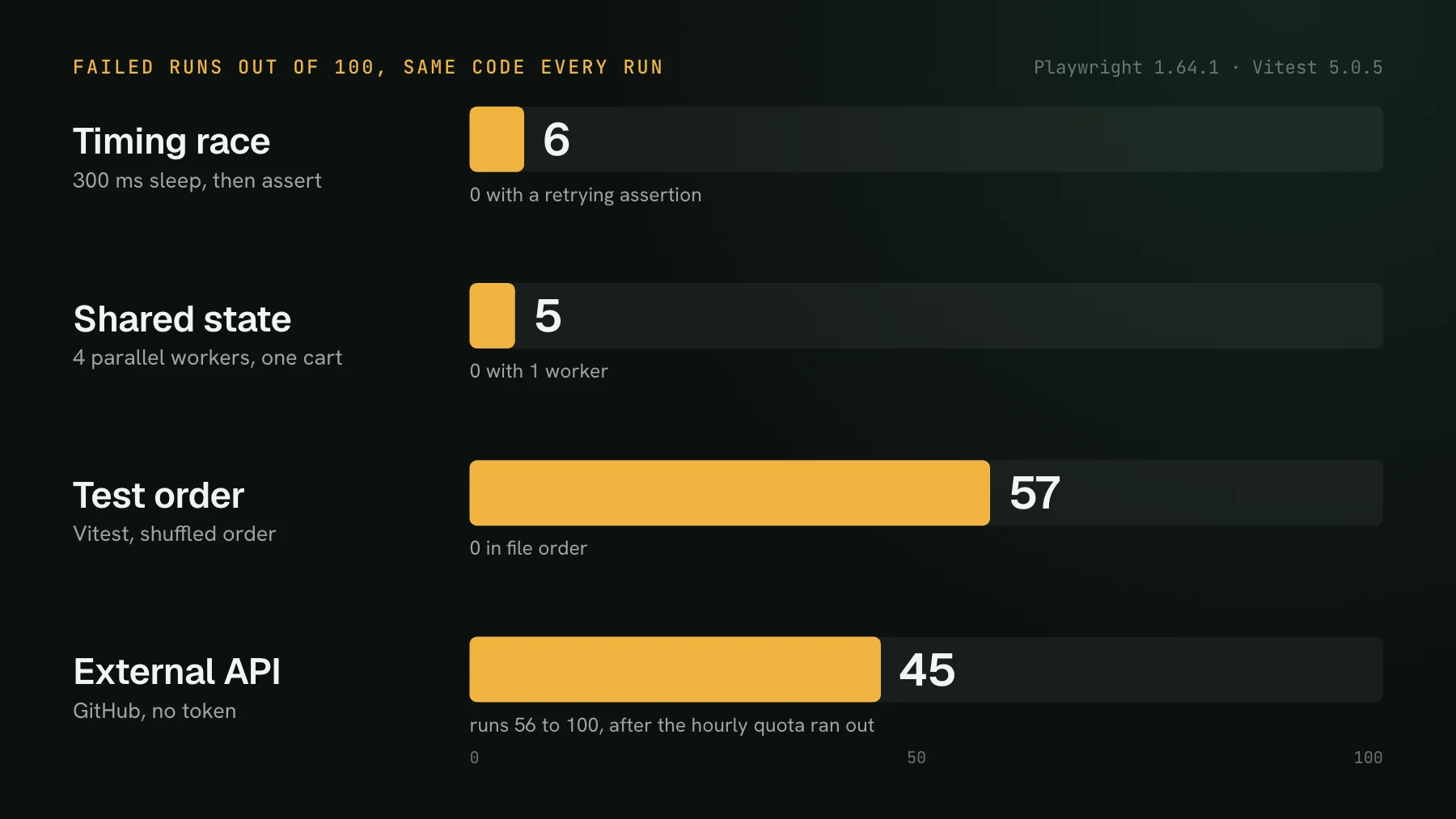
Level also decides cost. Over ten runs, a component test took a median of 88 to 168 milliseconds, two times faster than the page level for functional and screenshot tests and seven times faster for the axe scan. Every suite spent about 2.5 seconds starting up regardless, so the gap only shows once you have dozens of tests. A failing functional assertion also costs its full timeout: about 5 seconds in Playwright and 15 in Vitest's expect.element by default.
How do you automate UI testing?
Pick one tool per question and run all three on every pull request. A minimal setup for a React or Vue app looks like this:
- Does it work: component tests in Vitest browser mode (stable since Vitest 4; most guides still call it experimental) or Storybook play functions, and a handful of Playwright end-to-end journeys for the paths that cross pages.
- Does it look right: a screenshot test on every component state and key page. Playwright's
toHaveScreenshot()and Vitest'stoMatchScreenshot()work locally, but they store a baseline per operating system (our run wrote-darwin.pngfiles), so pin one browser and OS for baselines or use a service that renders them for you. - Can everyone use it: an axe scan in the same tests, with
@axe-core/playwrightin Playwright oraxe.run()in a Vitest browser test, failing on any violation of the WCAG levels you target.
The rule that makes this a layer and not a habit is that it runs in CI. A frontend lead at a small security startup described the half-way state well: their Storybook had accessibility and interaction tests, but they only ran on a laptop, and the visual sign-off before merge was someone looking. Tests that run when someone remembers catch things when someone remembers.
A UI testing checklist you can automate
- Every interactive control has a functional test that uses it the way a user would.
- Every state has its own test: empty, loading, error, long text, not just the happy path.
- Every state and breakpoint has a screenshot compared against an approved baseline.
- Baselines come from one pinned browser and OS, so a diff means the UI changed, not the machine.
- Every state gets an axe scan, failing on violations at the WCAG level you target.
- A person still does a keyboard and screen reader pass on new flows, because automated scans find roughly half of the issues.
Who writes UI tests when agents write the UI?
More and more, the agent does, and that changes the job. When a coding agent writes the component, it can also write the functional test and the axe scan, and run them in the same session. The question that stays hard for an agent is the visual one, because it needs a before to compare against and a way to see the difference. I put it this way in a talk earlier this year: if you loved writing tests, your job now is designing how everything gets verified.
UI Verify is visual regression testing for coding agents. It captures the component, page, and end-to-end tests you already have in Vitest browser mode, Playwright, Storybook, or Bun, renders them in one pinned browser, diffs each against its baseline on the pull request, and gives the agent each change over MCP with a verdict on whether it looks intended. Accessibility stays with axe in the same tests; UI Verify answers the "does it look right" question.
To add the visual layer, start from the Vitest quickstart or the Playwright quickstart. For the deeper version of the work-versus-looks gap, see when a pixel-perfect screen is still broken, and for why component tests carry most of the load, invert the testing pyramid. Start on the free tier of 10,000 snapshots a month; public open-source repositories get 50,000.
Automate the "does it look right" question
UI Verify screenshots the component, page and end-to-end tests you already have, diffs them on every pull request, and shows your coding agent each change over MCP.
Start for freeNo credit card required.
Set up visual testing
From no visual tests to a green check on every pull request.