Storybook MCP: your components as agent context
Storybook MCP hands your coding agent your components, props and stories as context. What the addon exposes, how to set it up, and what stories need.
 Igor LuchenkovBuilding UI Verify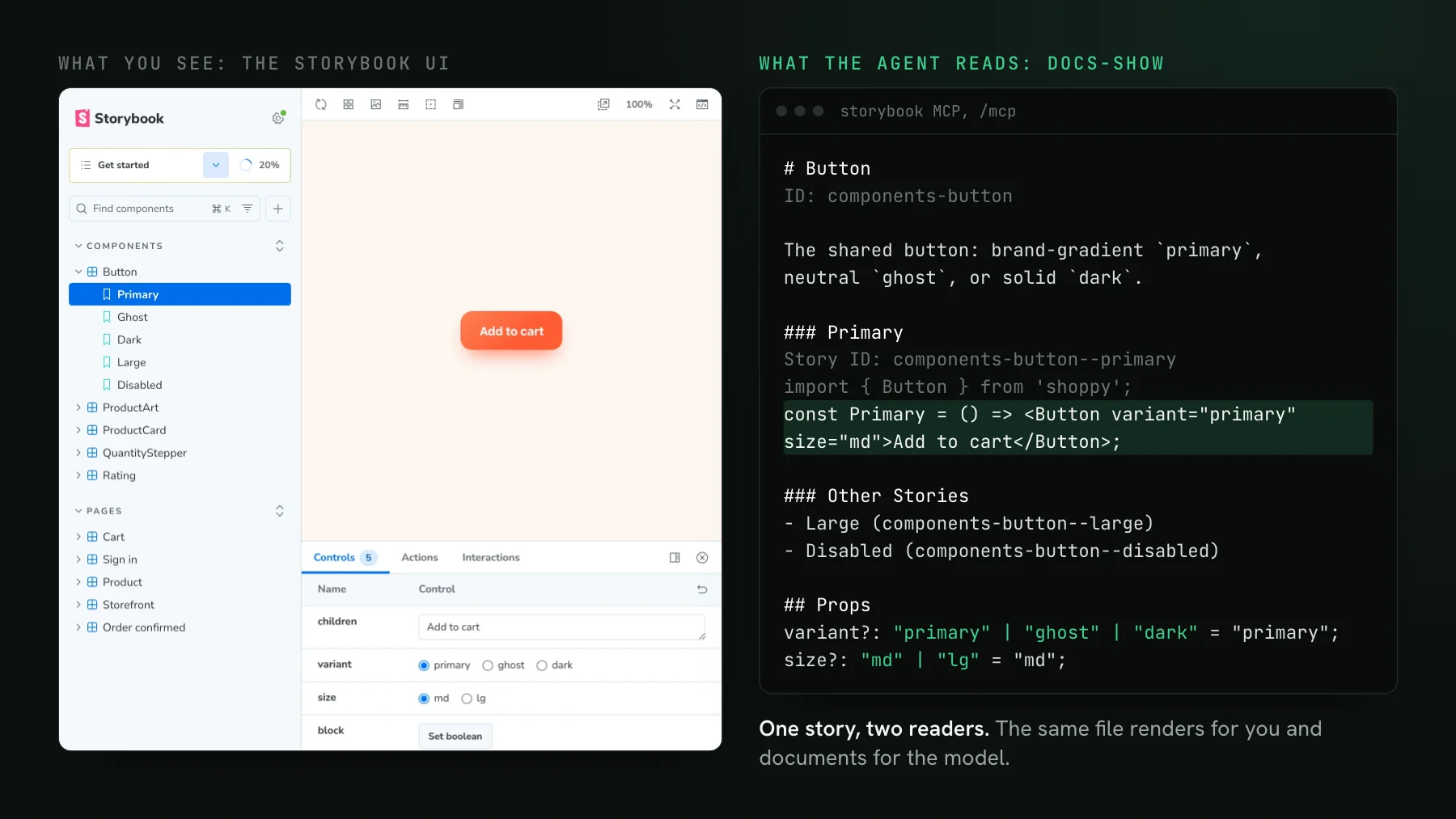
On this page
- What is the Storybook MCP server?
- How do you set up Storybook MCP in an existing Storybook?
- What does an agent get back from docs-show?
- An API your stories never mention does not exist
- What should a story contain so an agent uses it well?
- Does Storybook MCP show the agent the rendered result?
- How do you connect Storybook MCP and the UI Verify MCP in one project?
Storybook MCP is Storybook's Model Context Protocol server: an addon that serves your components, their props and your stories to a coding agent, so the agent can look up your design system before it writes UI instead of guessing. Before an agent changes anything in a codebase with a design system, it needs answers to a short list of questions, and it will answer them one way or another:
- What exists? Is there already a dialog, a toast, an empty state, or should it write one from scratch?
- Which props? What does
Buttonaccept, and which values are legal forvariant? - Which variant? Is the main action on this screen
primary, and is there a rule about how many primaries one view may have? - Which token or escape hatch? How does it make this one instance tighter, darker or wider without forking the component: a prop, a design token, a CSS variable?
Given nothing to read, an agent answers from training data and from whatever file is open: a shadow prop that sounds plausible, a hex value lifted from a neighbouring stylesheet, a fresh Modal.tsx next to the one your team already maintains. Storybook's MCP server is Storybook's answer to those questions. It turns the stories you already wrote into documentation an agent can query. This post covers what it exposes today, how to set it up, what your stories have to contain for the answers to be useful, and the one question it leaves open: what the change looks like once it renders.
What is the Storybook MCP server?
The Storybook MCP server is a Model Context Protocol server that ships as the @storybook/addon-mcp addon and runs inside your Storybook dev server at /mcp. It reads your component metadata, prop types and stories, and serves them to any MCP client: Claude Code, Cursor, Codex, Copilot and the rest. Storybook's MCP overview, checked 2026-10-17, marks its AI features as preview, so tool names and options can still change between releases; that page already lists a ninth tool, the review-create dev tool, which needs Storybook's review feature turned on. On Storybook 10.6.1 a fresh npx storybook@latest init installs the addon by default; we ran exactly that in an empty Vite and React project and listed the tools from a real MCP client call.
The eight tools fall into three toolsets, each of which you can switch off in the addon's options:
- docs:
docs-listreturns every component and docs entry with its ID,docs-showreturns one component's documentation, anddocs-show-storyreturns one story in full. These answer the four questions above. - dev:
get-storybook-story-instructionsreturns story-writing instructions the agent is told to treat as the source of truth,stories-changedlists stories affected by the working-tree diff,stories-find-by-componentmaps a source file to the stories that render it, andstories-previewreturns preview URLs. - test:
test-runruns story tests, with accessibility checks when you have them configured. It needs@storybook/addon-vitest, which the default init also installs.
The line in that screenshot is the part that shapes behaviour. The server tells the agent, on connect, to verify every property against these tools and to report a missing one rather than invent it. That instruction is good news for hallucinated props and, as the experiment further down shows, it also turns every gap in your stories into a task the agent will not finish.
How do you set up Storybook MCP in an existing Storybook?
Add the addon, start Storybook as usual, and point your agent at the endpoint. The mcp-add line is the one Storybook's docs give for any client:
npx storybook add @storybook/addon-mcp
npm run storybook   # serves http://localhost:6006/mcp next to the UI

# any MCP client, written to the project config
npx mcp-add --type http --url "http://localhost:6006/mcp" --scope project

# or Claude Code directly
claude mcp add --scope project --transport http storybook http://localhost:6006/mcp
The docs tools read a components manifest, and the componentsManifest feature that generates it defaults to false in Storybook's feature reference (checked 2026-10-17), so an existing Storybook sets it in .storybook/main.ts. The same file narrows what the agent can do through toolsets. A product repo that only consumes a design system usually wants the docs and nothing else; the dev and test tools act on the Storybook's own repository.
features: { componentsManifest: true },
addons: [
  {
    name: "@storybook/addon-mcp",
    options: { toolsets: { dev: false, test: false, docs: true } },
  },
],
Framework support is the main constraint. Per Storybook's manifest docs, as of 2026-10-17, the React frameworks, @storybook/vue3-vite and @storybook/angular-vite generate a manifest; Vue also needs the experimentalDocgenServer feature. In our fresh React init the docs tools worked with no extra config. To share one design system's MCP with many product repos, Storybook documents two routes: publishing the Storybook to Chromatic, which publishes the MCP server alongside it, or self-hosting the manifests with the @storybook/mcp package.
What does an agent get back from docs-show?
A markdown page per component, assembled from your code. The cover of this post is the real response for the Button in our public Shoppy demo store: the JSDoc above the component, the first three stories as JSX with their args inlined, the remaining stories by name only, and the TypeScript props. Read that list as a spec for your stories. A story is a usage example the agent will copy. A story past the third shows up only as a name, so the agent has to spend another call to see it. And a prop with no JSDoc arrives as an empty comment block: Shoppy's variant lists its three values but says nothing about when to use each, so that guidance lives in the component's one-line description or nowhere.
An API your stories never mention does not exist
Design systems are full of supported customizations that live only in a stylesheet: a CSS variable that sets a dialog's inner padding, a data attribute that switches a table to compact rows, a token a component reads if you set it on a wrapper. A human finds them by reading the CSS or asking in a channel. An agent following the Storybook MCP's instructions will not go looking, because it was told that an undocumented property does not exist.
We measured what that does. A small design system, @acme/ui, ships a Dialog whose inner padding reads --dialog-padding and falls back to 24px. A separate product repo consumes it as a built package from node_modules, with Claude Code connected to the design system's Storybook MCP (docs tools only). The prompt was the same every time: open a delete confirmation from the settings page, and make that one dialog more compact than the default, 16px of inner spacing. We ran it headless three times before and three times after one change to the stories.
Before the change, all three runs built the dialog correctly from documented props, left it at 24px, and wrote back that Dialog has no documented way to set its spacing. No run invented a prop and no run wrote a CSS override from the app. The guardrail held, and the ticket still came back unfinished. Then we added a single story to the design system:
After the change, all three runs wrapped the dialog in an element setting --dialog-padding: 16px, and each one cited the story's comment as the reason it did not touch padding directly. Nothing about the component changed. The only difference was whether a story exercised the API.
What should a story contain so an agent uses it well?
Everything an agent needs to use the component the way your team does, in the story file itself. Storybook's own best-practices page and the experiment above point at the same checklist:
- One story per supported way to use the component, including the escape hatches: CSS variables, tokens, slots, a polymorphic
as. If a customization is allowed, a story should exercise it. If it is not, the story's comment is where you say what to do instead. - A JSDoc on every story that says when to reach for it, with an
@summaryline. Storybook's example is a primary button documented as the main action, with no more than one per view: exactly the kind of rule an agent cannot infer from the props. - Values inline in the story. The snippet is generated from the story's args and render function, so an inline style or a literal token name travels to the agent and a rule in an imported stylesheet does not.
- The most instructive stories first.
docs-showprints the first three in full; the rest arrive as names. - JSDoc on props, and
react-docgen-typescriptas the docgen in a React project, which Storybook recommends for more accurate prop types. - Demo-only stories excluded with
tags: ['!manifest'], so a playground or a deliberately broken state does not become a usage example.
Page-level stories deserve a note. In the review further down, the agent opened the docs for Shoppy's Cart page and found only bare <Cart /> stories, so the page's layout rules came from the baseline screenshot rather than from any documentation. If you want an agent to respect a layout, the components inside it are where that knowledge has to live. Writing all of these stories by hand is less of a chore than it was; stop writing Storybook stories by hand covers making the agent author them under a rule and a lint guard.
Does Storybook MCP show the agent the rendered result?
No. Everything above improves the agent's input, and none of it tells the agent what its change did to the pixels. Storybook's dev and test tools come close from the other side: stories-preview returns URLs a person can open, and test-run executes interaction and accessibility tests. Neither compares a rendered story against an accepted baseline, so a restyle that passes every assertion, like a primary button losing its fill, goes through both.
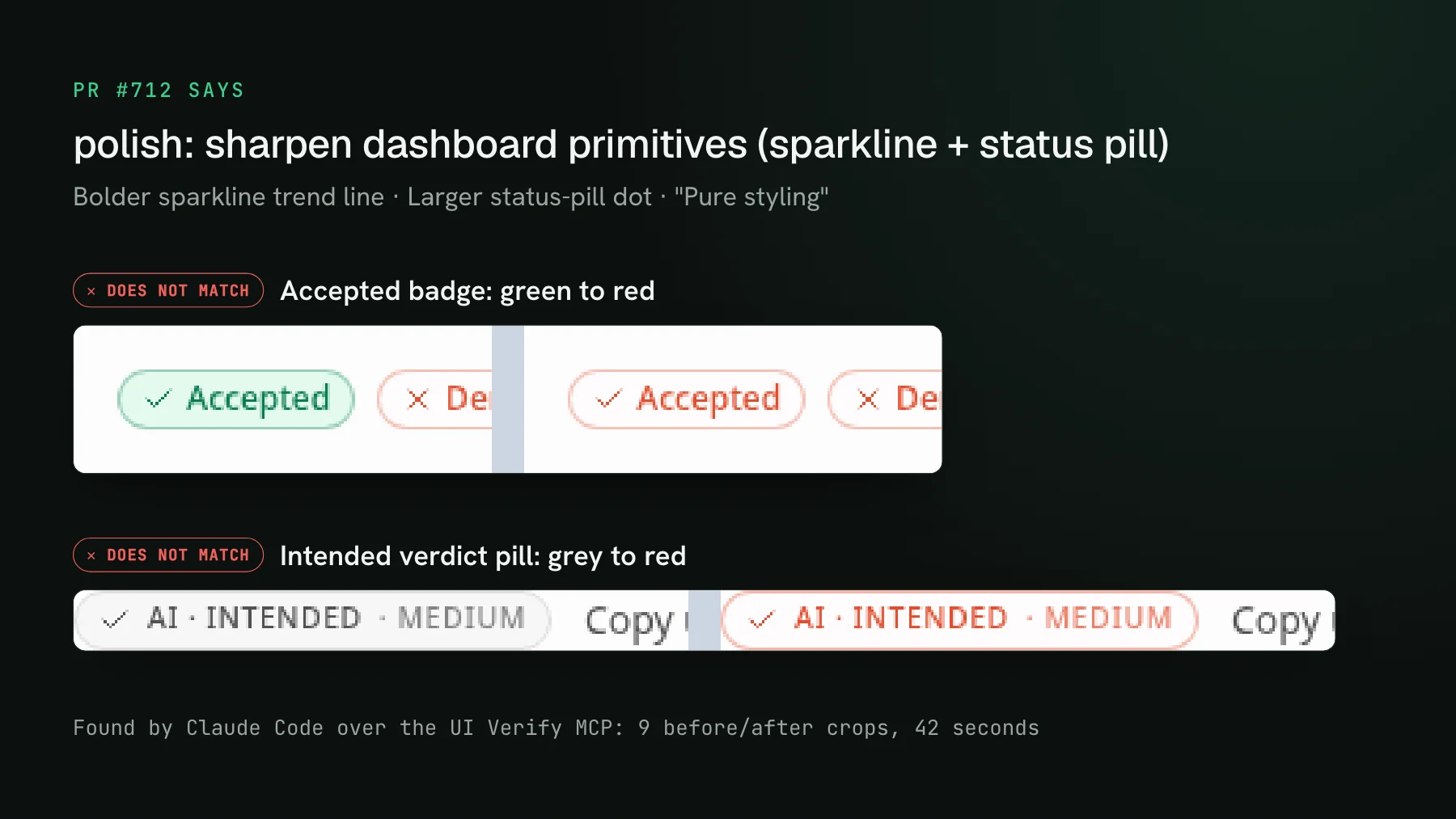
That half is what the UI Verify MCP covers. UI Verify renders your stories on the pull request, or only the ones you name mid-edit with `uiverify check`, diffs each against its baseline, and an AI judge labels each change intended or a regression with its reasoning. Over MCP, render_diff_image returns the baseline and candidate side by side, cropped to the region that moved, as pixels the agent's vision model reads directly, and get_diff returns the verdict plus image URLs. Why the crop matters more than a full-page screenshot is the subject of give your agent the cropped diff.
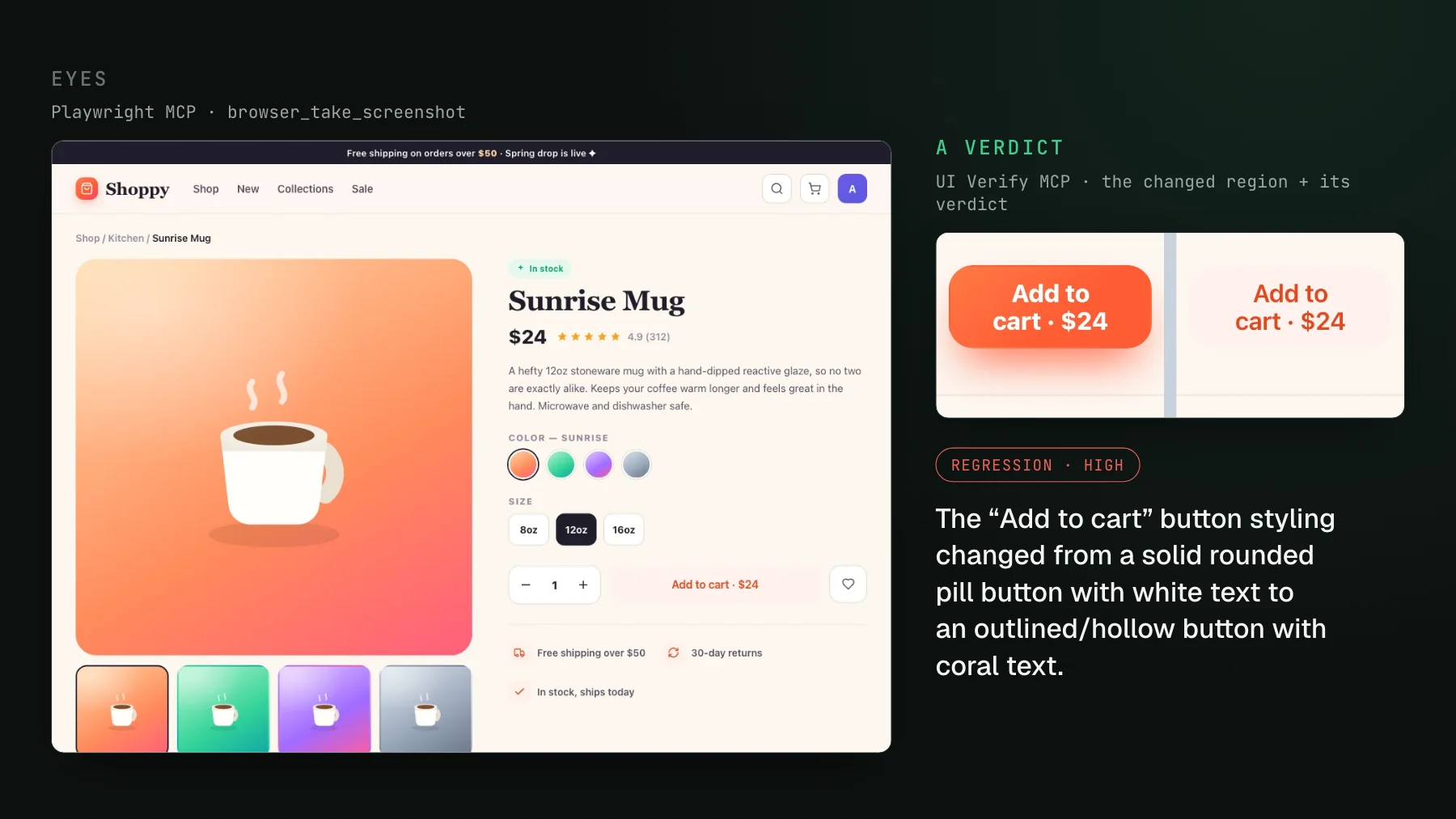
To see the two servers in one session, we installed the Storybook MCP addon in a clone of the Shoppy demo repo, checked out its public pull request, and asked Claude Code to review the UI Verify build, naming the design-system component behind each regression and the smallest fix. Both servers were connected; only read-only tools were allowed. The pull request said it polished the product rating badge. It also carried a CSS rule that restyled the product page's Add to cart button.
The order of calls is the interesting part. The agent read the judge's verdicts from get_build and pulled the cropped diffs with render_diff_image, then asked Storybook what Button with variant="primary" is documented to look like, and only then grepped the stylesheet for the rule that overrode it. Each server answered a question the other cannot. The docs alone would never have pointed at the button, because nothing in them changed. The diff alone says the button changed and that the change looks unintended, but not which documented variant it should match or that the fix is to delete an override rather than patch a colour.
How do you connect Storybook MCP and the UI Verify MCP in one project?
Both servers are plain HTTP MCP endpoints, so they sit side by side in the same project config. With Claude Code at project scope, the committed .mcp.json holds no secret: each developer logs in to UI Verify once in the browser (in Claude Code, restart, run /mcp, and pick uiverify).
claude mcp add --scope project --transport http storybook http://localhost:6006/mcp

claude mcp add --scope project --transport http uiverify https://uiverify.ai/mcp
Then give the agent the order of operations in your CLAUDE.md or AGENTS.md: look components up in Storybook before using them, and after any change that touches how the UI looks, check the visual diff before calling the task done. The Storybook quickstart wires the visual side, triage with your agent lists the UI Verify tools, and the check visual changes skill packages the mid-edit loop into one command. Your stories now have two readers, and the agent reads both what they say and how they render.
Show your agent what its change did
Storybook's MCP tells your agent which components to use. UI Verify renders your stories on the pull request and hands the agent a cropped before and after plus an AI verdict over MCP, so it sees the result before you do.
Start for freeNo credit card required.
Check visual changes mid-edit
Preview a UI edit against the real baseline, no PR, no moved baseline.